Vector Image Tool - Selecting an Image
The Vector Image Tool enables you to associate at least one image with a point. Different images may be configured to represent different point states or alarm states. If you select images for various states, you must know the point type (analog, digital, string, or enumeration) that the image is to represent and select the image(s) accordingly.
If an object is only meant to be static, assign it a default image. The default image is the image that is always displayed. If the object is dynamic, the default image is the image shown in Edit mode and is also displayed when a point state or alarm state occurs for which no image has been assigned. Otherwise, the image configured for the particular point state or alarm state appears. For instance, you could assign a default image of a gray pump to a point. The point could be assigned a red pump image that appears only when the pump is in high alarm.
Note: Only .svg, .wmf, .emf, .dxf, .dwg, and .dwf file types are supported by this tool.
To Associate an Image with a Point
- Using CygNet Studio in Edit mode, locate the Graphics Tools palette, click the desired tool icon, then click on the TheView. This places the tool on TheView.
- Right-click the newly added tool to open its Property Sheet.
- On the Normal page, locate the [Images] property and click its Browse button.
- In the Point State Image Configuration dialog box, configure the Scheme, Type, and Mode options:
- Click the Scheme drop-down menu and select the appropriate option. The point scheme determines the options listed under State. Most installations will be CygNet Standard.
- Click the Type drop-down menu and select the appropriate point type. Set it to the type of point associated with the object. Once set, the appropriate State options for the type appear. If using only a default image, use * or any point type.
- Click the Mode drop-down menu and select the appropriate option. Which option you select determines which state(s) become available for configuration. Unavailable State options are dimmed. Always add a default image, even if the object is going to be dynamic. This is because the only image shown in Edit mode is the default image. The Mode options are as follows:
- Default Only: This mode enables only the specification of a default image.
- Alarm Condition: This mode enables the association of images with the alarm states relevant to the type specified in the Type field.
- Point State: This mode enables the association of images with the point states relevant to the type specified in the Type field.
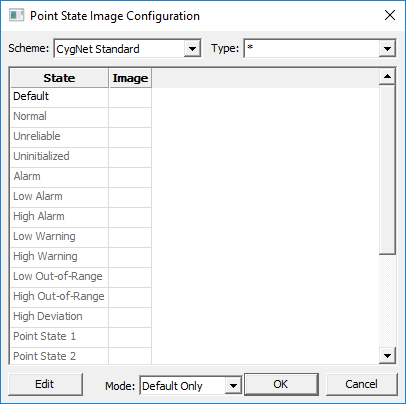
- To associate an image with a State, select the state, and type the path and file name of the image you want to associate with this selected state directly into the Image cell. Remember that only .svg, .wmf, .emf, .dxf, .dwg, and .dwf file types are supported by this tool.
- Alternately you can browse to find the desired vector image. Double-click the Image cell for the selected state or click Edit. Unavailable State options are dimmed.
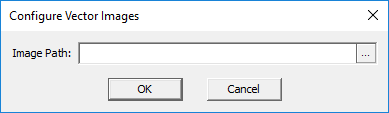
- On the Configure Vector Images dialog box that opens, click the Browse button beside the Image Path field and browse to the location of your desired image and select it. Only .svg, .wmf, .emf, .dxf, .dwg, and .dwf file types are supported by this tool. You have two options depending on the file system specified:
- Standard File System: Use Windows Explorer to locate and select the desired image.
- BLOB File System: Specify a BLOB Service, select a Folder, then select the File Name and click OK. Folders and images in the BLOB must be preexisting. For information about adding images to or retrieving images from the BSS, see Opening Files from or Saving Files to the BSS.
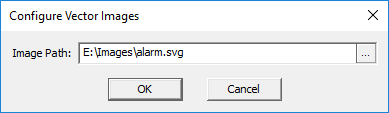
- After selecting the vector-based image, you return to the Configure Vector Image dialog box. If you are satisfied that the correct image file was added, click OK.
- When you return to the Point State Image Configuration dialog box, you will see that the specified image appears in the Image column beside the corresponding State. If you are satisfied with the results, click OK.
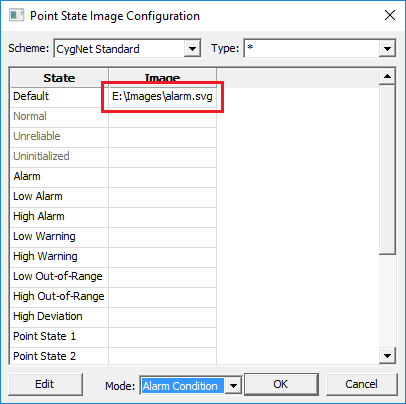
- If you want to configure more images for states, repeat steps 5 to 10 above.


